How to Use Google Search Console: A Step-by-Step Tutorial
Understanding your website’s performance in organic search results is critical for online success. Google Search Console (GSC) offers a free, powerful way to track your site’s visibility, identify technical issues, and refine your SEO strategy. This guide simplifies its core features while delivering actionable steps to maximize its value.
GSC provides insights into how your pages appear in search results. It tracks clicks, impressions, and average positions for specific queries. You’ll also receive alerts about crawl errors, mobile usability problems, or security issues that could harm your rankings. Whether you’re new to SEO or managing a complex site, these tools help you stay ahead of technical challenges.
This tutorial walks through setting up your account, verifying site ownership, and interpreting critical reports. You’ll learn to optimize content based on performance data and troubleshoot common errors. Real-world examples illustrate how businesses use GSC to improve user experience and organic traffic.
Key Takeaways
- GSC is a free platform for monitoring search performance and technical SEO health.
- Track clicks, impressions, and keyword rankings to refine content strategies.
- Identify indexing errors or mobile compatibility issues quickly.
- Use built-in reports to prioritize fixes that boost visibility.
- Advanced features like URL inspection streamline troubleshooting.
Understanding Google Search Console
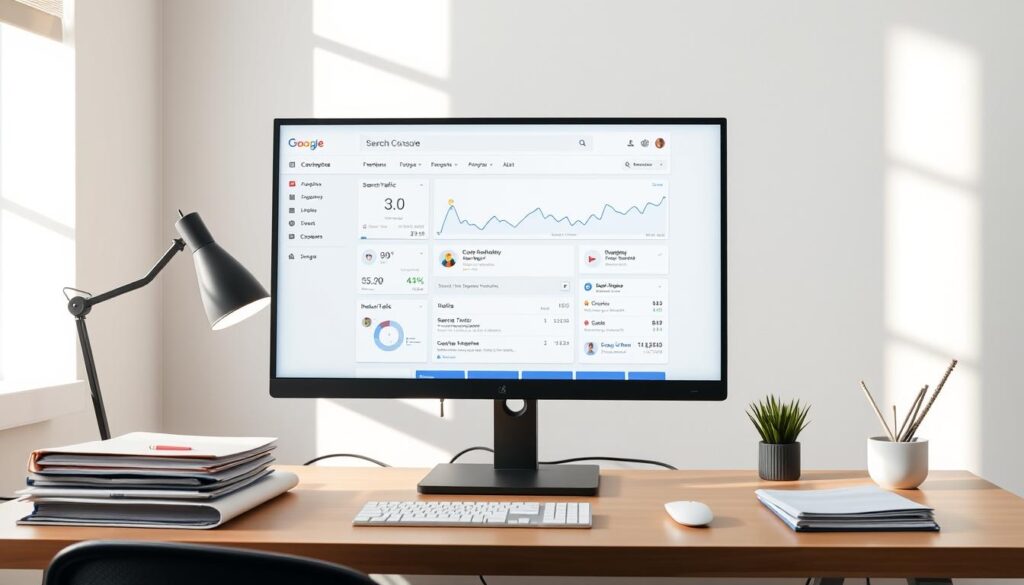
Gaining insights into your online presence is essential for growth. This free platform provides detailed analytics about how your content performs organically. It reveals which pages attract visitors and highlights opportunities to refine your strategy.
What Is This Tool?
The service acts as a bridge between your website and its visibility. It shows which pages are included in organic listings and how they’re categorized. You can monitor indexing status, spot errors, and track user engagement metrics like clicks over time.
Benefits and Key Features
This tool offers actionable data to improve technical performance. Key functionalities include:
- Index coverage reports that identify pages excluded from listings
- URL inspection to analyze individual page health
- Mobile usability alerts for compatibility issues
Site owners receive alerts about security threats or manual penalties affecting rankings. Structured data reports help optimize rich snippets, while link analysis tools reveal top referral sources.
| Feature | Practical Benefit |
|---|---|
| Performance Metrics | Track queries driving traffic |
| Index Coverage | Fix missing pages quickly |
| Enhancements Report | Improve rich snippet display |
| Security Issues | Resolve malware warnings |
With real-time diagnostics, you can address crawl errors before they impact visibility. The dashboard’s search analytics also reveal seasonal trends in user behavior, helping you adapt content strategies effectively.
Setting Up Your Google Search Console Account
Establishing your website’s presence in organic listings starts with proper setup. Begin by signing into the platform using your existing credentials. Navigate to the property addition section to input your site’s details.

Step-by-Step Property Addition
Choose between two property types: Domain (covers all subdomains) or URL Prefix (specific directory). For new users, URL prefix offers simpler verification. Enter your website address exactly as it appears in browsers.
| Property Type | Best For | Verification Method |
|---|---|---|
| Domain | Multi-subdomain sites | DNS record |
| URL Prefix | Single directories | HTML file upload |
Verification Methods Explained
DNS verification requires adding a TXT record through providers like GoDaddy. HTML file upload involves placing a unique file in your site’s root folder. Both methods confirm ownership to access indexed pages data.
If verification fails, check for typos in DNS entries or file placement. Delays rarely exceed 48 hours. Once confirmed, assign team roles under Permissions to control data access.
Proper setup ensures accurate tracking of indexed pages and performance metrics. This foundation lets you monitor updates and add new content strategically.
Choosing Between Domain and URL Prefix Properties
Selecting the right property type shapes how you monitor and optimize your online footprint. Domain and URL prefix options serve distinct purposes, each offering unique advantages for tracking technical performance.
Domain properties provide complete visibility across all subdomains and protocols. This includes HTTP/HTTPS variations and regional versions of your website. Ideal for large organizations, it simplifies managing complex architectures through DNS verification.
DNS Setup vs. URL Prefix Advantages
URL prefix properties focus on specific directories, like blog sections or product categories. They’re easier to verify via HTML file uploads and allow granular tracking of individual page groups. Startups often prefer this method for targeted campaign analysis.
| Property Type | Best Use Case | Setup Complexity | SEO Impact |
|---|---|---|---|
| Domain | Enterprise websites with multiple subdomains | High (DNS records) | Comprehensive error detection |
| URL Prefix | Microsites or campaign landing pages | Low (HTML upload) | Focused performance tracking |
An e-commerce platform might use both: a domain property for their main site and URL prefixes for seasonal promotions. This hybrid approach ensures broad coverage while isolating high-priority pages.
When managing multiple properties, organize them by purpose in your dashboard. Label them clearly, like “Main-Site-Domain” or “2024-Blog-Prefix,” to avoid confusion during data reviews.
Navigating the GSC Dashboard
The dashboard’s interface is your command center for optimizing online visibility. Core sections like Performance, Index Coverage, and Enhancements appear on the left panel. These tools help manage technical aspects of your site while tracking growth opportunities.
Click any report to view real-time metrics. The Performance tab reveals impressions, clicks, and average rankings. For deeper analysis, adjust date ranges or filter results by query type. Use the URL Inspection tool to check indexing status instantly.
| Section | Key Metrics | Purpose |
|---|---|---|
| Performance | Clicks, impressions | Track content effectiveness |
| Index Coverage | Valid/Error pages | Fix crawling issues |
| Enhancements | Structured data errors | Improve rich snippets |
Prioritize metrics aligning with your goals. Weekly checks on click-through rates highlight underperforming pages. Mobile usability alerts ensure your site meets modern standards.
Customize the dashboard by pinning frequently used reports. Drag-and-drop widgets let you compare data across periods. Save custom filters to skip repetitive setup steps during reviews.
Leveraging the Performance Report for SEO Insights
Your content’s visibility in organic results hinges on actionable data. The Performance report organizes critical metrics like clicks, impressions, and rankings into digestible formats. This snapshot reveals what resonates with audiences and where adjustments could boost engagement.
Breaking Down Core Metrics
Total clicks measure how often users visit your pages from search results. Impressions show how frequently your content appears, even if no clicks occur. A low click-through rate (CTR) often signals mismatched titles or meta descriptions needing refinement.
Average position indicates where your page ranks for specific queries. Pages lingering beyond position #10 rarely gain traction. Focus on improving content quality for these URLs to climb higher.
Turning Data Into Action
Sort results by query or page to spot patterns. High impressions but low clicks? Rewrite meta tags to better match search intent. Pages with strong CTRs but poor rankings may need backlink building or technical fixes.
Compare 30-day and 90-day ranges to gauge progress after updates. Seasonal trends often explain traffic dips, helping you avoid unnecessary overhauls. Regular analysis transforms raw numbers into strategic upgrades for sustained growth.
Utilizing the URL Inspection Tool
Pinpointing technical issues affecting individual pages requires precise diagnostics. The URL Inspection tool acts like an X-ray scanner for your web content, revealing crawl status, mobile compatibility, and structured data accuracy. This feature helps you verify whether critical updates appear correctly in organic results.
To begin, paste the full page address into the search bar. The tool returns a detailed report within seconds. You’ll see when the platform last crawled the page, whether it’s indexed, and any rendering problems detected. Testing live URLs ensures you view content exactly as automated systems process it.
| Issue Detected | Potential Impact | Recommended Action |
|---|---|---|
| Blocked by robots.txt | Page excluded from results | Update robots.txt directives |
| Mobile usability errors | Poor user experience | Fix viewport settings |
| Structured data mismatches | Missing rich snippets | Validate schema markup |
New pages often require manual indexing requests. After publishing fresh content, use the “Request Indexing” button to prioritize crawling. This accelerates visibility in search results compared to waiting for automatic discovery.
The tool’s diagnostics empower data-driven optimizations. For example, if structured data errors appear, refine your markup using the platform’s official documentation. Regular checks prevent minor issues from snowballing into ranking drops.
Managing Index Coverage and Page Indexing
Keeping your pages visible in search rankings requires proactive maintenance. The Index Coverage report acts as your diagnostic toolkit, categorizing pages as valid, warning, or error. This breakdown helps prioritize fixes that directly impact visibility.
Troubleshooting Common Errors
Red flags like 404 errors or ‘noindex’ tags appear in the report. Pages marked “Excluded” often have canonical tags pointing to preferred versions. For example, duplicate product descriptions might be excluded if another URL is designated as primary.
| Issue | Impact | Solution |
|---|---|---|
| 404 Not Found | Broken user experience | Update internal links or redirect |
| Duplicate Content | Crawl budget waste | Set canonical URLs |
| Blocked by robots.txt | Exclusion from results | Adjust directives |
| Soft 404 Errors | Misleading status codes | Improve page content |
To resolve 404s, fix broken links or set up 301 redirects. For accidental noindex tags, remove them from page headers. Use the “Validate Fix” button after corrections to trigger a re-crawl.
Regularly audit excluded pages. Some might need meta tag adjustments, while others require URL parameter updates. Prioritize high-traffic pages first to maximize SEO gains quickly.
Submitting and Managing Sitemaps
A well-structured sitemap acts as a roadmap for efficient website exploration. XML sitemaps list all important pages, helping crawlers prioritize content discovery. This ensures new posts or products appear in search results faster.
- Navigate to Sitemaps under the Indexing section
- Enter your sitemap URL (e.g., sitemap_index.xml)
- Click Submit
The platform displays processing status within hours. Look for “Success” confirmations or error alerts needing fixes. Common issues include blocked URLs or incorrect formatting.
| Status | Meaning | Action |
|---|---|---|
| Success | All URLs processed | None required |
| Partial | Some pages excluded | Review errors |
| Failed | File unreadable | Re-upload sitemap |
Update your sitemap monthly or after major content updates. Use automated generators for dynamic sites to maintain accuracy. Combine this with crawl audits from tools like Semrush’s Site Audit to identify gaps between submitted and indexed pages.
Best practices:
- Limit sitemaps to 50,000 URLs each
- Exclude duplicate or low-value pages
- Monitor Discovered – currently not indexed reports
Regular sitemap maintenance keeps your site’s structure transparent for crawlers and users. Pair this process with performance tracking to maximize content visibility.
Exploring the Enhancements and AMP Reports
Maximizing your site’s search potential requires mastering specialized reports that spotlight technical opportunities. Two tools stand out for refining rich results and mobile performance: the Enhancements report and AMP analysis. These features help you resolve issues that impact how content appears in listings.
Uncovering Structured Data Issues
The Enhancements report scans your entire property for markup errors affecting rich snippets. Common structured data types include product reviews, event schedules, and recipe cards. Errors here might hide star ratings or interactive elements in search results.
For example, missing breadcrumb navigation markup could prevent users from seeing site hierarchy in listings. The report flags mismatched dates, invalid prices, or incomplete author bios. Fix these by updating schema code or testing changes with the platform’s validation tools.
| Report Type | Key Purpose | Common Fixes |
|---|---|---|
| Enhancements | Improve rich result eligibility | Schema validation, meta tag updates |
| AMP | Optimize mobile page speed | HTML error correction, cache fixes |
The AMP report identifies pages failing mobile speed standards. Invalid pages often have broken CSS or unapproved JavaScript. Resolve these to maintain eligibility for lightning-fast loading in mobile results.
After correcting AMP errors, use the “Validate Fix” button to trigger immediate rechecks. This saves time compared to waiting for automatic crawls. Prioritize high-traffic pages first to protect user experience and rankings.
Monitoring Manual Actions and Security Alerts
Protecting your website’s search presence demands vigilance against penalties and threats. Manual actions occur when human reviewers flag policy violations, while security alerts warn of vulnerabilities affecting user safety. Both require immediate attention to maintain rankings and trust.
Navigate to the Manual Actions report under “Security & Manual Actions” in the left menu. A clean report displays “No issues detected.” If penalties exist, details explain violated policies—like thin content or unnatural links—and affected pages.
| Common Penalty Causes | Resolution Steps |
|---|---|
| Spammy backlinks | Disavow toxic links |
| Cloaking content | Align user/crawler views |
| Keyword stuffing | Rewrite over-optimized text |
Security alerts appear under “Security Issues” for problems like hacked pages or malware. These trigger sudden traffic drops if unresolved. Address warnings within 72 hours using platform-recommended tools or security guidelines.
Prevent issues by:
- Auditing content monthly for policy compliance
- Updating plugins/themes to patch vulnerabilities
- Using HTTPS encryption sitewide
Weekly checks of these reports help catch problems early. Combine this with third-party malware scanners for layered protection. Staying proactive ensures your web presence remains secure and penalty-free.
Analyzing Internal and External Links
Links act as pathways guiding users and search engines through your digital content. Internal connections help visitors navigate your site, while external endorsements signal authority to ranking algorithms. The platform’s Links report maps these relationships, offering actionable insights to strengthen your SEO foundation.
Access this tool under the “Links” menu to view two key categories: external sites linking to you and internal page connections. Top linked pages reveal high-value content, while referring domains highlight your most influential partners. Use this information to identify partnership opportunities or content gaps needing attention.
| Link Type | Primary Purpose | Optimization Strategy |
|---|---|---|
| Internal | Guide users to related content | Link 3-5 relevant pages per article |
| External | Build domain authority | Prioritize niche-relevant websites |
Improve internal linking by connecting new posts to cornerstone content. Avoid excessive links that dilute page authority—stick to contextually relevant connections. For external profiles, analyze anchor text diversity. A natural mix of branded terms and descriptive phrases prevents over-optimization flags.
Regularly audit for broken links causing errors in user experience. Tools like Ahrefs’ Site Audit complement the platform’s basic reports by uncovering redirect chains or orphaned pages. Pair this information with performance metrics to prioritize fixes boosting crawl efficiency.
“Strategic internal linking can increase page visibility by up to 40% for key service pages.”
Focus on creating link-worthy resources like original research or interactive tools. Outreach to industry blogs mentioning your niche—but not your site—can gradually build a healthier backlink profile. Consistent monitoring ensures your linking strategy evolves with search trends.
Improving Mobile Usability and Page Experience
Mobile devices dominate internet usage, making smooth navigation and fast loading non-negotiable for visitor retention. Users expect instant access to information without zooming or horizontal scrolling. A single delay can drive them to competitor sites.
Core Web Vitals Insights
Core Web Vitals measure real-world user experience through three metrics:
- Largest Contentful Paint (LCP): Tracks loading speed (aim for under 2.5 seconds)
- First Input Delay (FID): Measures interactivity (target below 100 milliseconds)
- Cumulative Layout Shift (CLS): Quantifies visual stability (keep under 0.1)
| Metric | Ideal Threshold | Common Fixes |
|---|---|---|
| LCP | <2.5s | Optimize images, upgrade hosting |
| FID | <100ms | Reduce JavaScript execution |
| CLS | <0.1 | Define image dimensions |
Mobile-Friendly Testing
The platform’s Mobile Usability report flags pages with:
- Text too small to read
- Clickable elements too close
- Unplayable content
Run live tests by entering URLs into the mobile-friendly checker. For example, an e-commerce site fixed 32% of layout issues by widening buttons and increasing font sizes. This boosted their clicks from mobile users by 19% in eight weeks.
Prioritize fixes across your domain based on traffic impact. Use responsive design frameworks to maintain consistency. Regular audits ensure your site adapts to evolving mobile standards and user expectations.
Integrating GSC with Other SEO Tools
Combining data sources amplifies your ability to refine strategies and outpace competitors. Linking platforms like Semrush and Google Analytics creates a centralized hub for tracking performance metrics and identifying growth opportunities.
Syncing With Semrush for Advanced Insights
Connecting GSC to Semrush via API unlocks competitor analysis and keyword gap reports. This integration lets you compare your ranking trends against industry benchmarks. For example, a travel blog discovered 12 high-traffic keywords competitors ranked for but they didn’t—leading to a 27% traffic boost in three months.
Enhancing Google Analytics Reporting
Linking GSC to Analytics under Admin Settings merges organic search data with user behavior stats. You’ll see how specific queries influence bounce rates or session durations. Adjust settings to filter by device type or geographic region, revealing patterns like mobile users preferring video content.
| Integration | Key Benefit | Use Case |
|---|---|---|
| Semrush | Competitor backlink analysis | Identify outreach targets |
| Analytics | Query-to-conversion tracking | Optimize landing pages |
These connections simplify auditing by merging impressions data with technical SEO metrics. A SaaS company reduced crawl errors by 43% after correlating GSC index coverage reports with Semrush site health scores. Automated dashboards save hours weekly, letting teams focus on strategic adjustments.
Optimizing Content Strategy with GSC Data
Actionable data drives smarter content decisions. GSC’s Performance tab reveals which queries and pages attract visitors, helping you double down on winning topics. Analyze clicks and impressions to spot gaps between user intent and your current offerings.
Low CTR pages often need meta tag overhauls. For example, a travel blog increased clicks by 34% after rewriting 12 underperforming titles. Pair this with content upgrades like adding FAQs or visual guides to boost engagement.
| Page Type | Optimization Action | Expected Impact |
|---|---|---|
| High impressions, low clicks | Improve title relevance | +20-40% CTR |
| Strong CTR, poor rankings | Build internal links | 3-5 position gains |
| Zero impressions | Target long-tail keywords | Indexing in 2-4 weeks |
Audit your URLs quarterly using the Pages report. Remove or merge thin content dragging down domain authority. One SaaS company improved organic traffic by 28% after consolidating 17 redundant service pages.
Align updates with trending queries from the Search Results tab. When “AI writing tools” spiked in impressions, a software site published three comparison guides, capturing 1,200+ monthly visits. Continuous refinement keeps your sites competitive in shifting search landscapes.
Comprehensive Google Search Console Tutorial
Mastering your website’s SEO requires combining insights from multiple tools. This step-by-step walkthrough ties together every feature covered in this guide. Follow these steps to monitor, troubleshoot, and optimize your online presence effectively.
Start by verifying site ownership through DNS records or HTML file upload. Assign roles to team members under Permissions to control data access. Use the left menu to navigate between reports—prioritize Index Coverage and Performance tabs weekly.
Bookmark these critical actions:
| Core Area | Action Items | Tools Used |
|---|---|---|
| Setup | Verify ownership, submit sitemap | Property Settings |
| Monitoring | Check manual actions, mobile usability | Security Reports |
| Optimization | Analyze top linked pages, fix structured data | Enhancements tab |
Site owners should schedule monthly audits using this checklist:
- Review click-through rates for underperforming pages
- Validate AMP page compliance
- Update internal links to boost crawl efficiency
Click the “Validate Fix” button after resolving errors to accelerate re-indexing. Track progress through date-filtered performance graphs. Most visitors discover issues within 14 days using these methods.
New users often miss the Links report showing referral sources. Combine this with URL inspection data to identify broken partnerships. Regular use builds confidence in managing technical SEO independently.
Conclusion
Maintaining a competitive edge in organic visibility demands continuous learning and adaptation. This guide has equipped you with actionable steps to set up your account, analyze critical reports, and resolve technical barriers affecting your site’s performance.
Regularly monitoring index coverage, mobile usability, and security alerts helps prevent ranking drops. Use the Performance tab to refine content strategies based on real user behavior. Pair these insights with tools like URL inspection to streamline troubleshooting.
For ongoing success, revisit your account weekly to track progress and identify emerging opportunities. Platforms evolve, so stay updated on new features through resources like our detailed walkthrough. Consistent optimization turns raw data into sustainable growth.
Apply these techniques to enhance crawl efficiency and user experience. Every adjustment – from fixing structured data to improving Core Web Vitals – strengthens your digital foundation. Start small, prioritize high-impact fixes, and watch your visibility climb.
FAQ
How do I verify my website in Google Search Console?
What’s the difference between domain and URL prefix properties?
How can I resolve “Page not indexed” errors?
Why are impressions high but clicks low in Performance Reports?
How does Core Web Vitals impact my site’s visibility?
Can I connect Semrush to Google Search Console data?
What security issues trigger manual actions?
How often should I submit sitemaps?
About The Author
