How to Use Screaming Frog: A Comprehensive Guide for SEO
In the competitive world of search engine optimization, tools that simplify technical audits are invaluable. The Screaming Frog SEO Spider stands out as a powerful crawler designed to uncover hidden website issues. Whether auditing internal links, analyzing metadata, or visualizing site architecture, this tool delivers actionable insights for professionals.
Getting started is straightforward. The software supports Windows, MacOS, and Ubuntu systems. Installation involves downloading the executable file and following platform-specific prompts. A quick start guide simplifies initial setup, while the free version allows crawling up to 500 URLs—ideal for smaller projects.
Upgrading to a licensed version unlocks advanced features like JavaScript rendering, scheduled crawls, and integration with Google Analytics. License activation is seamless, ensuring uninterrupted access to critical functions like XML sitemap generation and hreflang audits. This flexibility makes the tool adaptable for freelancers and enterprise teams alike.
Mastering the SEO Spider is essential for diagnosing over 300 technical issues, from broken links to duplicate content. Its ability to export data into customizable reports streamlines collaboration, making it a cornerstone of modern SEO workflows.
Key Takeaways
- The SEO Spider identifies critical technical issues impacting website performance.
- Installation is compatible with Windows, MacOS, and Ubuntu operating systems.
- The free version supports limited crawls, while the licensed edition offers scalability.
- Advanced features include JavaScript crawling and Google Search Console integration.
- This guide covers setup, optimization, and advanced troubleshooting techniques.
Introduction to the Screaming Frog SEO Spider
Technical audits form the backbone of effective SEO strategies. The Screaming Frog SEO Spider simplifies this process by acting as a website crawler that maps, analyzes, and troubleshoots site structures. Since its launch, it’s evolved into a must-have for marketers tackling modern search engine challenges.
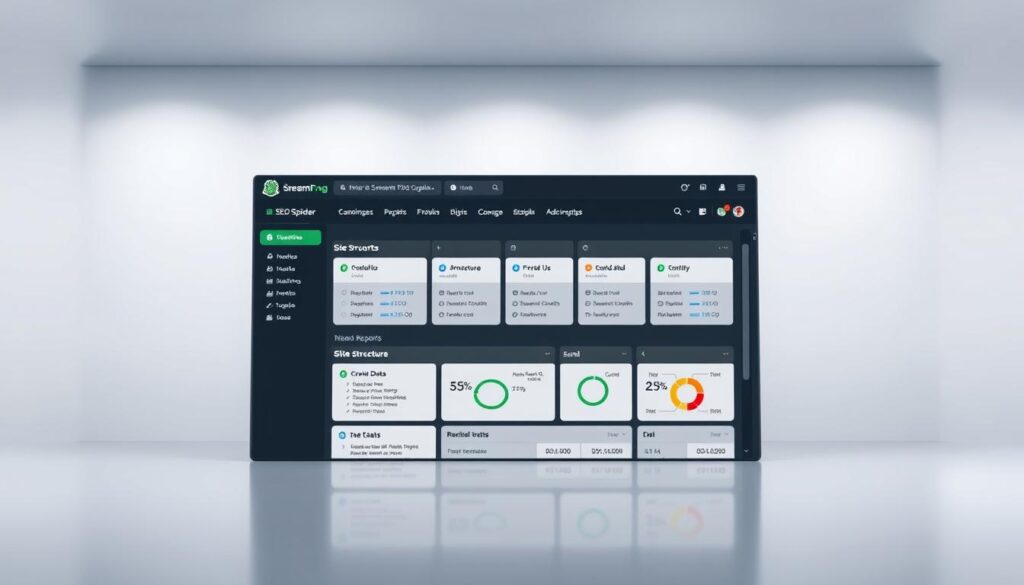
This tool offers real-time crawl updates, tracking response codes like 404 errors or redirect chains instantly. For example, it identifies broken links during scans and flags duplicate meta tags. These insights help teams prioritize fixes that directly impact rankings.
| Feature | Free Version | Licensed Version |
|---|---|---|
| Real-Time Crawl Data | ✓ | ✓ |
| JavaScript Rendering | ✗ | ✓ |
| Google Analytics Integration | ✗ | ✓ |
Beginners appreciate its intuitive design. Enter a URL, click “Start,” and the spider crawls pages while displaying metrics like load times and canonical tags. Exportable reports make sharing findings with developers or clients effortless.
For agencies, the SEO Spider reveals site architecture patterns affecting crawl budgets. Visualizing internal linking structures helps optimize content distribution. This functionality positions the tool as critical for both technical audits and strategic planning.
Why Screaming Frog is Essential for Modern SEO
Modern search algorithms prioritize websites with logical hierarchies and strong internal linking networks. A well-structured site distributes authority evenly, helping search engines understand content relationships. Without this foundation, even high-quality pages may struggle to rank.

The SEO Spider excels at mapping these connections. During crawls, it identifies orphaned pages lacking inbound links—a common oversight in large websites. One marketing agency reduced bounce rates by 18% after fixing broken links uncovered through real-time crawl data.
| Aspect | Manual Audit | SEO Spider |
|---|---|---|
| Time Investment | Hours | Minutes |
| Issue Detection | Partial | Comprehensive |
| Scalability | Limited | Unlimited |
“Internal linking isn’t just about navigation—it’s about distributing authority across your entire domain. Tools that map these connections are non-negotiable in 2024.”
Beyond link validation, the tool reveals content gaps through missing header tags or thin content flags. These insights let teams optimize existing pages rather than creating new material blindly. For example, an e-commerce site improved conversions by 22% after restructuring product categories based on crawl patterns.
With 83% of websites having critical internal linking errors, automated audits are no longer optional. The SEO Spider’s visualizations help teams redesign site architectures to match searcher intent—a key ranking factor in Google’s Helpful Content Update.
Getting Started: Installation & Setup
Streamlining your SEO audit workflow begins with proper tool configuration. The software supports three major operating systems, ensuring flexibility for diverse technical environments.
System-Specific Installation Steps
Download the installer from the official website. Windows users double-click the .exe file, while MacOS requires dragging the app to the Applications folder. Ubuntu installations use terminal commands for seamless integration.
System requirements include Java Runtime Environment and 2GB RAM. Verify compatibility before launching to prevent performance issues during large crawl operations.
License Activation Strategies
Free mode allows 500 URL scans—sufficient for small websites. Paid licenses unlock unlimited data collection and advanced features. Enter your username and activation key in Preferences > License to upgrade.
| Feature | Free Version | Licensed Version |
|---|---|---|
| URL Limit | 500 | Unlimited |
| JavaScript Analysis | Disabled | Enabled |
| Storage Mode | Temporary | Persistent |
Choose “In-Memory” mode for faster audits on robust systems. Opt for “Database” storage when handling complex sites exceeding 10,000 pages. License validation errors? Consult the troubleshooting FAQ for instant solutions.
Proper setup ensures accurate crawl results and prevents resource bottlenecks. All configurations sync automatically across sessions, saving time during recurring audits.
Memory and Storage Configuration Tips
Optimizing storage settings accelerates SEO audits by balancing speed and data accuracy. The SEO Spider offers two modes: in-memory and database storage. Choosing the right option depends on your hardware and project size.
In-memory mode uses RAM for instant data access, ideal for smaller websites or quick scans. It processes links faster but risks crashes with large datasets. Database storage writes crawl results to disk, supporting complex audits exceeding 10,000 pages. This method thrives on SSD drives due to their rapid read/write capabilities.
| Storage Type | Speed | Capacity | Best For |
|---|---|---|---|
| RAM (In-Memory) | Fastest | Up to 50k pages | Quick audits |
| SSD (Database) | High | Unlimited | Enterprise websites |
Teams with 16GB+ RAM can prioritize in-memory processing for real-time analysis. For resource-heavy projects, pair database mode with NVMe SSDs to streamline search data exports. A media company reduced crawl times by 37% after switching to SSD-based storage.
Avoid misconfiguration by testing both modes during trial crawls. Database storage sometimes requires manual cache clearing to prevent bloated files. Always back up crawl repositories before major audits to safeguard website analysis history.
how to use screaming frog: Crawl Modes and Configuration
Strategic crawl configuration separates basic audits from actionable SEO insights. Choosing between discovery-focused and targeted approaches determines data accuracy while conserving resources.
Spider Mode vs. List Mode Explained
Spider mode explores websites organically by following internal links. It’s ideal for discovering new pages or mapping complex architectures. List mode crawls predefined URLs from CSV files or sitemaps—perfect for monitoring specific sections like product categories.
| Mode | Best Use Case | Data Depth |
|---|---|---|
| Spider | Site discovery | Comprehensive |
| List | Targeted audits | Focused |
Customizing Crawl Settings for Better Data
Exclusion rules filter irrelevant paths like admin panels or image folders. Inclusion patterns prioritize key directories—essential for e-commerce sites with thousands of product pages. Adjust crawl depth limits to avoid overwhelming resource usage.
Set parameters to ignore JavaScript files during initial scans. Enable HTTP headers analysis for redirect chain detection. These tweaks align with recommendations in our configuration guide for enterprise-level audits.
Switching modes mid-project saves hours. Start with spider mode to identify structural gaps. Shift to list mode for recurring checks on high-priority URLs. This hybrid approach balances discovery with precision.
Crawling Your Website: Initiating Your First Crawl
Launching your first website audit requires precision. Enter your domain into the SEO Spider’s address bar and click “Start” to activate the crawler. Real-time results populate instantly across multiple tabs, each tracking distinct metrics like response codes and discovered urls.
The interface organizes data into dedicated panels. The “Overview” tab displays crawl progress, while “Internal” and “External” sections categorize links. Watch the URL count grow as the spider maps connections between pages. This live feedback helps identify bottlenecks early.
| Crawl Mode | URL Capacity | Best Use Case |
|---|---|---|
| Standard | Up to 500 | Quick health checks |
| List | Unlimited | Targeted audits |
| Database | Enterprise-scale | Complex architectures |
Pause scans anytime to adjust configuration settings. Need deeper analysis? Enable “Parse JavaScript” mid-crawl without restarting. One digital agency reduced audit time by 42% using this feature during large e-commerce scans.
“The tabbed interface transforms raw data into actionable insights. Seeing live URL discovery patterns helps prioritize fixes during active crawls.”
If scans stall, check exclusion filters or increase RAM allocation. Clear cache files between sessions to maintain optimal performance. Proper configuration ensures complete data capture across all website sections.
Reviewing and Analyzing Crawl Data
Effective SEO diagnostics begin with mastering crawl data interpretation. The tool organizes findings into dedicated panels, each offering unique insights into website health. Central tabs display internal links, media files, and server responses—critical elements for identifying optimization opportunities.
Navigating the Internal Tabs and Response Codes
Three primary sections dominate the interface:
- Internal Links: Reveals connection density between pages
- Images: Flags missing alt text or oversized files
- Response Codes: Highlights HTTP status errors
Server responses dictate crawl efficiency. A 404 error indicates broken links requiring immediate attention. 301 redirects suggest outdated URLs needing consolidation. This real-time feedback enables rapid troubleshooting during active scans.
| Status Code | Meaning | Recommended Action |
|---|---|---|
| 200 | Success | No action needed |
| 301 | Permanent Redirect | Update internal links |
| 404 | Not Found | Fix or redirect URL |
| 500 | Server Error | Contact developer |
Cross-reference crawled content with original URLs to detect discrepancies. Mismatched metadata or missing headers often indicate CMS configuration errors. Filter results by directory to pinpoint problematic website sections.
Best practices include:
- Exporting crawl reports for team collaboration
- Comparing multiple scans to track progress
- Setting custom alerts for critical errors
Diagnostic accuracy improves when combining response code analysis with content audits. This dual approach reveals both technical flaws and optimization gaps impacting search visibility.
Identifying and Resolving SEO Issues with Screaming Frog
Effective SEO audits rely on pinpointing hidden website flaws that impact search visibility. The Issues tab acts as a diagnostic hub, categorizing problems by severity and type. Broken links, duplicate titles, and missing meta descriptions appear instantly, allowing teams to address root causes rather than symptoms.
During a crawl, the tool flags orphaned pages lacking internal links and redirect chains exceeding three hops. For example, a travel blog discovered 47 broken product URLs through real-time alerts. Fixing these reduced bounce rates by 15% within two weeks, demonstrating how technical errors affect user engagement.
| Critical Errors | Minor Warnings | Impact Level |
|---|---|---|
| 404 Not Found | Missing Alt Text | High |
| Duplicate Content | Slow-Loading Pages | Medium |
| Blocked Resources | Unminified CSS | Low |
Prioritize fixes based on crawl depth and traffic potential. Pages with high impressions in Google Search Console demand urgent attention. Combine this data with user behavior metrics like time-on-page to identify leaks in conversion funnels.
Minor warnings matter too. Thin content sections often correlate with high exit rates. Addressing both major and subtle issues creates a balanced optimization strategy. Export filtered results to CSV for developer handoffs, ensuring every team member understands their role in boosting site health.
Exporting Crawl Data for Detailed Analysis
Transforming raw crawl data into actionable reports separates proactive SEO strategies from guesswork. The SEO Spider simplifies this process through flexible export options that turn technical findings into shareable formats.
Access export features through the top menu or right-click context options. Choose between bulk exports for entire datasets or selective field downloads focusing on specific metrics. For instance:
| Export Type | Data Included | Best For |
|---|---|---|
| Bulk CSV | All crawled URLs with 50+ metrics | Comprehensive audits |
| Custom Selection | User-chosen columns | Focused issue tracking |
Diagnose inlinks distribution patterns by exporting internal link reports. Identify pages with excessive redirects through HTTP status code filters. Spreadsheet software like Excel transforms these files into pivot tables for trend analysis.
Adjust default settings to exclude unnecessary columns or modify date formats. One agency saved 12 hours monthly by creating preset templates for recurring client reports. Export configurations save automatically, ensuring consistency across projects.
“Exported crawl data becomes our team’s roadmap. Visualizing inlinks through heatmaps reveals content hubs needing reinforcement.”
Combine multiple exports to create cross-functional dashboards. Merge redirect chains data with Google Analytics metrics to prioritize high-traffic pages needing fixes. This approach turns technical issues into revenue-impacting insights.
Saving and Reopening Crawls for Ongoing Projects
Maintaining historical crawl records transforms one-time audits into strategic SEO assets. Completed scans can be saved via File > Save Project, preserving every detail from response codes to internal linking patterns. Organize these files into labeled folders for quick access during client reviews or team meetings.
Database storage automatically retains crawl information between sessions. In-memory users must export data before closing the application. Saved projects enable side-by-side comparisons—spotting improvements in linking structures or identifying recurring errors becomes effortless.
| Storage Type | Saving Process | Data Retention |
|---|---|---|
| Database | Auto-saves | Permanent |
| In-Memory | Manual export | Temporary |
Reopening past crawls reveals trends affecting top-performing pages. A six-month comparison might show how redirected URLs impacted organic traffic. This information helps refine content strategies and justify budget allocations.
Teams managing enterprise websites benefit most. Archived projects provide evidence for top-level decisions about site migrations or CMS upgrades. Consistent record-keeping also simplifies compliance audits by maintaining verifiable optimization histories.
“Our quarterly crawl archives became the backbone of client retention strategies. Demonstrating year-over-year progress builds trust faster than any pitch deck.”
Prioritize naming conventions like Domain_Date_StorageType when saving files. This practice ensures quick retrieval during urgent linking audits or competitor analysis. Historical data turns reactive troubleshooting into proactive optimization—a game-changer for long-term campaigns.
Mastering the Custom Search Features
Precision targeting separates generic audits from strategic SEO breakthroughs. The SEO Spider’s custom search function scans HTML code, page text, and specific elements using exact phrases or regex patterns. This feature transforms the tool into a surgical instrument for identifying hidden technical issues or content gaps.
Activate custom searches through the Configuration menu. Choose between basic text matching for simple queries or regex for complex pattern detection. For example, searching “h2:.*discount” locates all H2 headers containing promotional terms—critical for e-commerce audits.
| Search Type | Use Case | Flexibility |
|---|---|---|
| Text | Exact phrase matches | Low |
| Regex | Dynamic pattern detection | High |
Results appear in the dedicated search tab with occurrence counts. Click any entry to view matching pages instantly. This workflow helps teams spot trends like missing schema markup or inconsistent product IDs across thousands of URLs.
Best practices include:
- Combining filters (e.g., “title tag + missing meta description”)
- Exporting results for cross-team collaboration
- Using regex for web scraping tasks
If data seems inconsistent, check regex syntax or adjust case sensitivity settings. Saved search profiles enable rapid replication of successful queries, making recurring audits 63% faster according to enterprise SEO teams.
Harnessing Advanced Features and Integrations
Third-party integrations elevate the SEO Spider from a diagnostic tool to a strategic powerhouse. Connecting it with Google Analytics and Search Console merges crawl data with performance metrics, revealing correlations between technical health and traffic trends.
Integrating with Google Analytics and Search Console
Linking accounts unlocks cross-platform insights. Follow these steps:
- Navigate to Configuration > API Access
- Authenticate via OAuth for Google services
- Select desired Analytics views or Search Console properties
This integration surfaces metrics like:
- Pages with high impressions but low clicks
- Top-performing content needing technical optimization
- Mobile usability errors affecting rankings
| Platform | Key Benefit |
|---|---|
| Google Analytics | Traffic-to-error rate analysis |
| Search Console | Index coverage diagnostics |
Using Command Line and Bulk Export Options
Automate repetitive tasks through command line operations. Example syntax:
seospider --crawl example.com --output-folder reportsBulk export streamlines large-scale audits. Export multiple datasets simultaneously:
- Internal link graphs
- Redirect chain maps
- Duplicate content clusters
“Bulk exports transformed our agency’s workflow. Combining crawl data with Ahrefs metrics cut reporting time by half.”
Visualizing Your Website Architecture
Visualizing website architecture transforms raw data into actionable insights. The SEO Spider generates interactive diagrams like force-directed graphs and tree maps to reveal your site’s structural strengths and weaknesses. These tools highlight how pages interconnect, exposing inefficient crawl website paths or clusters of broken links.
Force-directed diagrams show page relationships through proximity and line density. Pages with numerous internal links appear larger, while orphaned pages drift to the edges. Tree graphs display hierarchical structures, helping teams spot shallow navigation layers that hinder user engagement.
| Diagram Type | Key Insight | Use Case |
|---|---|---|
| Force-Directed | Link density patterns | Identifying authority hubs |
| Tree Graph | Navigation depth | Optimizing menu structures |
Integrating Google Analytics data overlays metrics like bounce rates onto visualizations. Pages with high exit rates but strong internal links may need content updates. For example, an online retailer redesigned its checkout flow after noticing users abandoning a well-linked but confusing product page.
Visual tools also expose broken links within specific sections. A media company found 12% of its blog’s internal links led to 404 errors—issues hidden in spreadsheet audits. Fixing these improved crawl efficiency and reduced server load during crawl website scans.
“Architecture diagrams turn abstract data into visual stories. Seeing a page’s isolation instantly communicates its optimization priority.”
These outputs simplify stakeholder communication. Non-technical teams grasp structural issues faster through color-coded nodes than spreadsheets. For technical audits, diagrams clarify how fixing broken links or adjusting crawl depth aligns with broader Google Analytics performance goals.
Practical Applications of Visualisation Tools
Visualization tools turn complex website data into clear roadmaps for SEO improvement. By mapping every page and its connections, teams identify content gaps, streamline navigation, and boost crawl efficiency. These insights bridge technical audits with user experience strategies.
Tree graphs reveal how content topics align with keyword strategies. For instance, a blog lacking subtopic clusters might show sparse branches in visualizations. Expanding these sections with targeted articles strengthens topical authority. One SaaS company increased organic traffic by 34% after restructuring its resource center based on diagram insights.
Spotting duplicate content becomes effortless with heatmaps. Pages with overlapping text or metadata appear clustered, allowing quick consolidation. E-commerce sites often fix product variants flagged this way, reducing cannibalization risks. A fashion retailer resolved 82 duplicate URLs after visualizing title tag similarities across every page.
| Tool | Function | Outcome |
|---|---|---|
| Force-Directed Graphs | Link Density Analysis | Identify authority hubs |
| Heatmaps | Content Overlap Detection | Reduce duplication |
| Tree Diagrams | Navigation Audits | Improve user flow |
Non-technical users can get started instantly. The SEO Spider’s drag-and-drop filters simplify focusing on high-priority issues like orphaned pages or thin content zones. Exporting visual reports helps teams collaborate without deciphering spreadsheets.
“Visualizations showed us how 60% of our traffic flowed through just three pages. Diversifying internal links doubled conversions from long-tail keywords.”
Integrate these tools into audits by cross-referencing diagrams with Google Analytics data. Pages with strong visuals but high bounce rates may need better CTAs. Regular visual checks ensure duplicate content stays below 5% across every page, aligning technical health with business goals.
Optimizing Internal Linking and URL Patterns
A website’s internal linking strategy directly influences how search engines prioritize content. Strategic connections between pages distribute authority and guide crawlers to high-value sections. For example, linking blog posts to product pages can boost visibility for transactional keywords.
Effective URL structures follow logical hierarchies. Avoid dynamic parameters or session IDs, which confuse crawlers. Instead, use descriptive paths like /blog/seo-tips instead of /p=1234. Clean URLs improve crawl efficiency and user experience.
| Poor Structure | Optimized Structure |
|---|---|
| /category?id=5 | /digital-marketing |
| /product_123 | /running-shoes/mens-trailblazer |
Enable JavaScript rendering when auditing modern websites. This setting captures dynamically loaded text and interactive elements that standard crawlers might miss. Adjust rendering delays in Configuration > Spider settings to balance accuracy with crawl speed.
Search Console data reveals which pages struggle with indexing due to weak internal links. One SaaS company increased indexed pages by 27% after fixing linking gaps identified through crawl errors. Regular audits prevent authority dilution across sprawling sites.
Best practices include:
- Using keyword-rich anchor text without over-optimization
- Linking deep pages to category hubs
- Auditing links quarterly with updated JavaScript rendering rules
Combining technical adjustments with Search Console insights creates self-reinforcing SEO improvements. Clean architectures and intentional linking patterns become competitive advantages in algorithm updates.
Conclusion
Mastering the SEO Spider unlocks comprehensive insights for technical audits at any skill level. This guide outlined critical steps—from initial setup to advanced diagnostics—that transform raw data into optimization strategies.
Regular crawls with proper configuration ensure continuous website health monitoring. Leverage the menu options and filter functions to streamline analysis across complex architectures. These features help teams prioritize fixes that boost rankings and user experience.
Implementing best practices creates immediate impact. Schedule recurring audits, explore third-party integrations, and share findings through exportable reports. These habits turn sporadic checks into systematic improvement cycles.
Your journey doesn’t end here. Experiment with visualization tools and custom regex searches to uncover hidden opportunities. Share success stories in comments to help others maximize their crawl efficiency.
Technical SEO thrives on precision tools. The SEO Spider remains indispensable for maintaining competitive visibility in evolving search landscapes. Start your next crawl today—actionable insights await.
FAQ
What’s the difference between Spider Mode and List Mode?
Can Screaming Frog handle JavaScript-rendered content?
How do I integrate Google Analytics data into crawl reports?
What’s the best way to identify duplicate content issues?
How does Screaming Frog optimize internal linking strategies?
Can I automate crawls using command line or bulk exports?
Why does memory allocation matter during configuration?
How do I fix crawl errors like 404s or redirect chains?
Is there a way to visualize website architecture with this tool?
What’s the advantage of saving crawl projects?
About The Author
